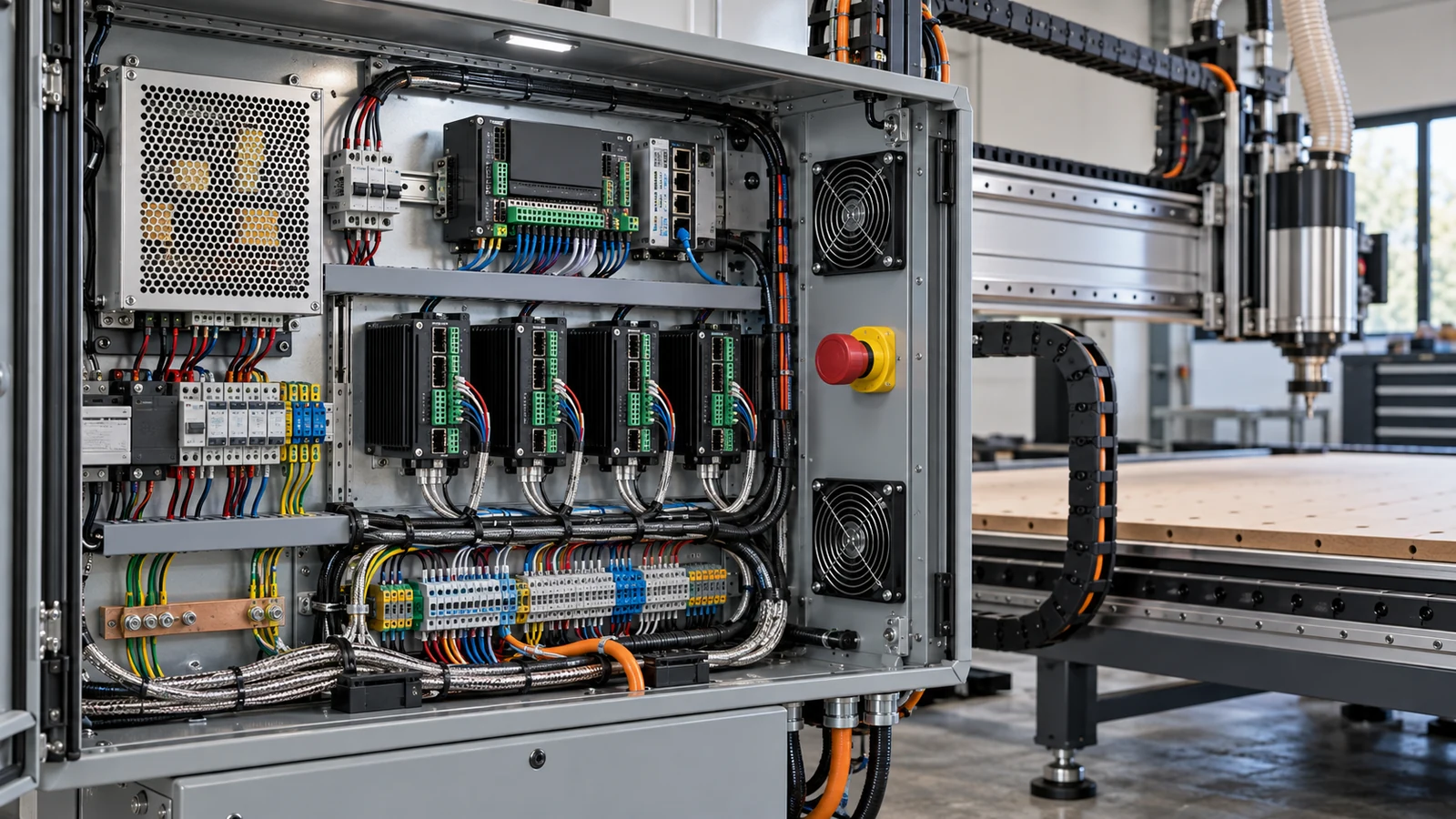
The computer at the machine usually needs far less power than the one you design on, but it must be reliable, run the right operating system and keep its USB or network link alive for hours. CAM and simulation are the heavy part, and they can live on a separate computer. Check your control software's requirements page first, then your CAM vendor's, and buy to the larger of the two only if one machine will do both jobs.
Two jobs, two sets of needs
The controller PC sends motion commands to the machine. For a GRBL-style desktop router that means streaming G-code over USB. For PC-based control such as Mach4 or LinuxCNC, the computer runs the control software and talks to motion hardware. The CAM PC draws parts, generates toolpaths and simulates them. These jobs have very different demands, so spec them separately. Our GRBL guide covers how that control family works, and the GRBL controller board guide covers the hardware side.
What the machine PC needs
Manufacturers publish requirements, and they tend to be modest. Carbide 3D's setup documentation lists a minimum operating system, memory and screen resolution for its control software, and says an older PC or an inexpensive tablet can do the job. That is a good model for what to check in any manual: operating system and version, memory, screen size, and the type of port.
- Operating system. Confirm the exact versions your control software supports. Some PC-based controls are tied to particular Windows or Linux releases and to hardware drivers.
- Ports. Count the USB ports the machine, a pendant, a probe adapter (see our Z-zero probe guide) and a camera will need. Ask the maker whether the control hardware needs a USB port, a network port or a legacy interface.
- Screen. The software needs enough resolution for its panels. A small low-resolution screen can hide buttons.
- Storage. A small drive is enough for the control software and G-code, but leave room for updates and backups.
A laptop is a sensible choice at the machine because it has its own battery, screen and keyboard in one unit, and a refurbished business model often has the ports older controllers expect. Check the port types and the battery condition before you buy used. A desktop tower with a separate screen is fine too, but it needs more bench space and another power cord near the dust.
If the software supports a pendant, a keyboard shortcut set or a touchscreen, check that your computer can run them. Carbide 3D's documentation notes that its jog pendant connects by USB, which is one more port to count.
Keep the link alive
Most failed jobs on a PC-controlled machine come from the computer, not the cutter. Turn off automatic sleep, hibernate and screen savers for the machine user. Check the operating system's power settings for anything that powers down USB ports to save energy. Disable automatic updates during working hours. If a job stops because the computer paused, many GRBL-style controllers treat it as a reset: the GRBL documentation says a reset during motion triggers an alarm and the position may be lost, so re-home before you resume.
A battery backup is an inexpensive way to survive a short power dip. Our UPS guide explains what to plug into it and what not to.
Buy cables to the maker's specification. A powered hub, a shorter cable or a locking connector often fixes drop-outs. Match the connector type to your controller.
What the CAM PC needs
CAM and 3D simulation are more demanding than G-code streaming. 3D carving, large models and long simulations push on memory, graphics and processor speed. Each vendor publishes system requirements: read them for the exact software and version you plan to run, including whether it needs a specific graphics capability or operating system. Do not guess from a general laptop review.
A practical approach: design and post-process on the faster computer, then move the G-code to the machine PC by USB stick or a network folder. Be careful that the file you send matches your control's post-processor. A post-processor written for a different control can produce commands your machine does not understand.
Moving files is simple but easy to get wrong. Name files with the date and the machine, keep a single folder for finished G-code, and delete old versions after a job so you never run the wrong one. If you use a network share, confirm the machine PC reads it reliably before you depend on it in the middle of a job. A USB stick is the lowest-tech option and is hard to break.
One computer or two?
| Setup | Good for | Trade-off |
|---|---|---|
| Old laptop at the machine, separate design PC | Most hobby routers | Files move between machines |
| One strong laptop for both | Small shops, one workbench | Dust and vibration reach an expensive computer |
| Dedicated PC for PC-based control | Mach4 or LinuxCNC setups | Needs a hardware check against the control's documentation |
Keeping an expensive computer away from router dust is a point for two machines. If you do use one laptop, place it where the vacuum exhaust and chip spray cannot reach it.
Dust, heat and mounting
Computers have fans, and fans draw in dust. Set the PC on a shelf or arm off the bench, keep vents clear and wipe the case. Mount the screen so you can reach the stop control and see the cut, but not so close that a chip or tool breakage could hit it. Machine safety, including emergency stop and guarding, defers to the manual and OSHA's machine guarding basics; see our emergency stop guide.
Back up before you change anything
Before an operating system update or a hardware swap, save your control settings, G-code library and CAM files. Our backup strategy guide shows what to copy. A spare machine PC with the same software installed is a cheap insurance policy once you depend on the machine.
Frequently asked questions
Can I use an old laptop to run my CNC?
Often yes. Carbide 3D says an older PC or inexpensive tablet can work for its software, but check your own control software's operating system, memory and port requirements.
Do I need a powerful computer for CAM?
Simple 2D toolpaths are light. 3D carving, big models and simulation need more. Read your CAM vendor's current system requirements.
Should the CAM computer be the same as the machine computer?
Not necessarily. Many shops design on one computer and run the machine from another, moving G-code by USB stick or network.
Why does my job stop when the computer sleeps?
Sleep and USB power saving can interrupt the link to the controller. Turn them off for the machine user and re-home if the controller alarmed.
The minimum-requirements example comes from Carbide 3D's setup page and the reset behavior from the GRBL v1.1 wiki. Exact operating systems, port types, memory and graphics needs for your control and CAM software are on each vendor's system requirements page, which changes with versions; confirm the current page before you buy a computer.