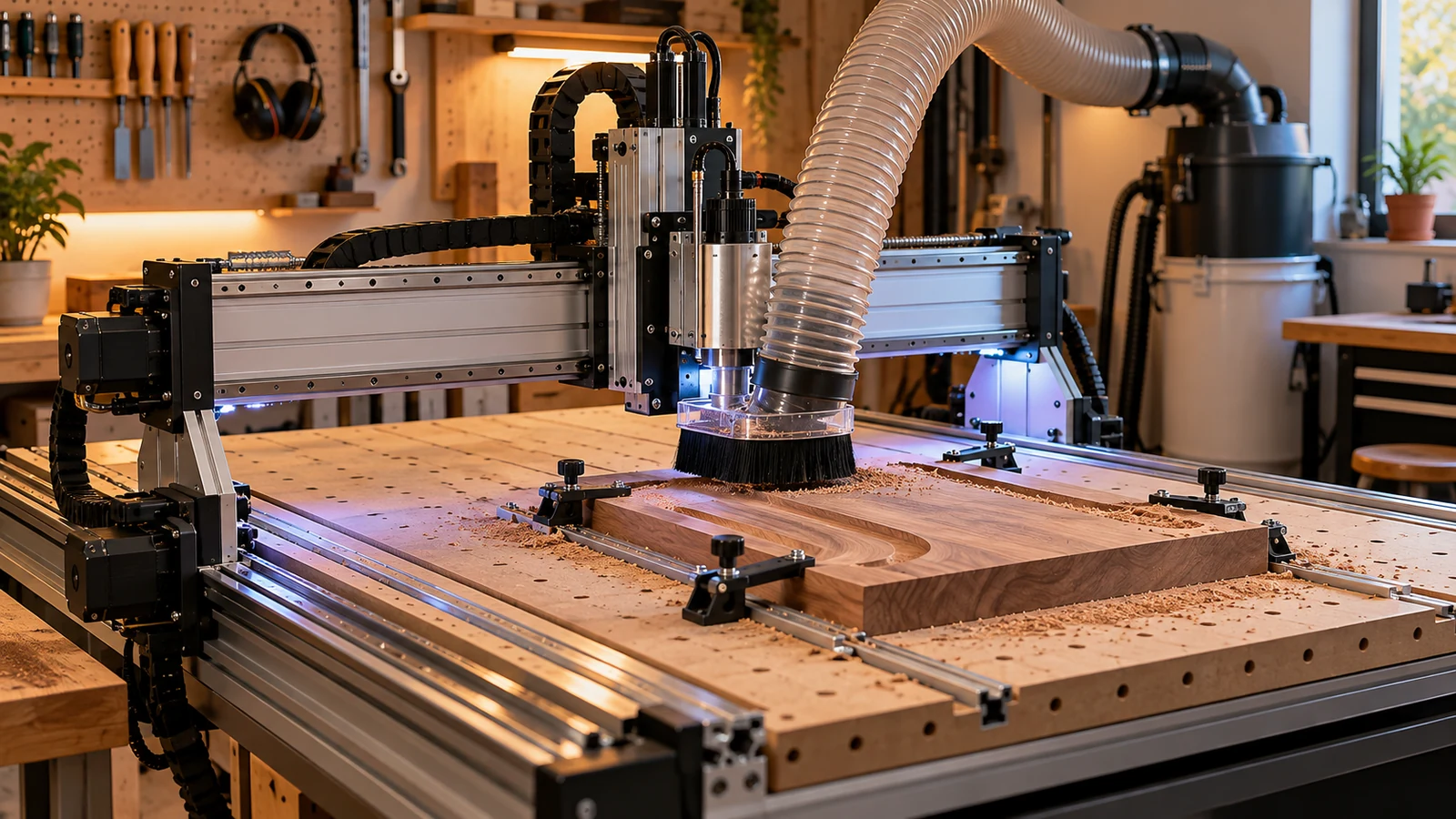
A CNC router that loses steps usually has one of four problems: it is being asked to move or cut harder than it can, a belt or pulley is slipping, a coupler or set screw has let go of a shaft, or something is dragging on an axis. Check them in that order, with the power off for every physical check, before you replace a controller or a driver.
Confirm that steps are really being lost
"Losing steps" means the motor did not turn as far as the controller commanded, so the machine thinks it is somewhere it is not. Many desktop routers use stepper motors without position feedback, so the controller cannot tell. The symptom is a part that shifts, a second pass that does not line up with the first, or a machine that does not return to zero.
A simple check: home the machine, run a short program that moves to several points and returns to start, then see whether the tool returns to the same spot. A repeat check with a dial indicator or a marker on a scrap board makes the drift visible. If the error is the same each time, think geometry or software. If it grows from run to run, think slipping.
Step one: reduce the load
Before you open anything, slow the program down and take a lighter cut. If the problem disappears, the machine was overloaded, not broken. Common causes are a feed rate or acceleration setting that is too ambitious, a dull or wrong bit that pushes harder than a sharp one, and a deep pass. Our calculators page can help you sanity-check feeds, and our single flute guide shows how bit choice changes cutting load.
Write down what changed before the problem started: a new bit, a new material, a different program, a moved machine, a changed setting. Most lost-step problems begin with a change, and the list narrows the search quickly.
If you recently changed acceleration or speed settings in the controller, restore the maker's defaults to see if the problem goes away. Settings vary by controller, so use the control's documentation.
Step two: belts and pulleys
On belt-driven axes, power off and look at three things: tension, tooth wear and pulley set screws. A belt that is too loose can skip teeth; one that is too tight loads the bearings. The right tension is the maker's number, not a feel. The pulley is clamped to the motor shaft by a set screw or clamp, and a loose pulley will spin without moving the belt. Mark the screw head with a paint pen so a future shift is obvious. Look for frayed edges, missing teeth and glazed surfaces on the belt. If the belt is worn, replace it with the type, tooth profile and width the manual specifies.
Match belt profile, width, length and pulley bore to your machine's manual. A listing that says 'fits most machines' is not a match.
Step three: couplers and lead screws
Machines with screw drives connect each motor to its screw through a coupler. Couplers can loosen, crack or slip on a smooth shaft. Wiggle test with the power off: if the motor shaft moves while the screw does not, tighten or replace the coupler. Check that the coupler's set screws are on the flat of the shaft, if the shaft has one. Threadlocker may be called for, but use the type the maker specifies.
Then check the screw. A nut that binds, a bent screw or debris in the threads makes the axis hard to turn. With the motor disconnected or the machine unpowered, move the axis by hand through its range. It should feel smooth and consistent. A tight spot points at the mechanics, not the electronics. Carbide 3D's maintenance page tells owners to keep rails and ballscrews clean and to wipe rails with oil periodically, and that is the best prevention.
Step four: rails, wheels and bearings
Dirt on a rail adds drag at one point and nothing at others, which produces position errors that depend on where the gantry is. Wipe the rails, check that wheels or bearing blocks turn freely and are adjusted per the manual, and look for flat spots or damage. Make sure cables and a drag chain do not snag. Our drag chain guide covers cable routing.
Step five: motor, driver and wiring
If the mechanics are clean and the load is reasonable, look at the electrical side. This is where you defer to the manual and a qualified technician, since mains and drive wiring can be hazardous.
- Current setting. Drivers have a current setting that must suit the motor. Too low gives weak torque; too high overheats. Use the numbers in your motor and driver documentation, not a forum post.
- Heat. A motor or driver that shuts down or feels extremely hot is telling you something. Let it cool and check the setting and airflow.
- Connectors and cables. A loose motor connector can drop a phase. Reseat connectors with the power off. Look for pinched or cracked cables, and keep motor leads away from spindle power cables. Shielded cable can reduce noise.
- Power supply. A weak or overloaded supply can sag when several axes move at once.
Our stepper driver guide explains how drivers and motors fit together. Do not swap in a bigger driver unless the motor, supply and mechanics match.
Step six: software and the controller
Only after those checks should you suspect the controller or software. On GRBL-based controllers, the project wiki says a reset during motion triggers an alarm and the machine's position may be lost, so always re-home after a stop. Some offsets persist and some do not, so check the reference before assuming a drift. A failed job that stops, resets or loses USB is a different problem from a slow drift; see our computer guide for the link side.
Quick order of checks
- Slow down and cut lighter.
- Check belt tension, belt wear and pulley set screws.
- Check couplers and screws; move the axis by hand.
- Clean rails and check wheels and bearings.
- Confirm motor current, heat, connectors and cables.
- Check software, settings and the link to the controller.
Frequently asked questions
What does it mean when a CNC router loses steps?
The motor turns less than the controller commanded, so the machine's recorded position no longer matches reality. Parts shift and the machine misses its zero.
What is the first thing to check?
Slow the program down and take a lighter cut. If the problem disappears, the machine was overloaded, not broken.
Can a loose set screw cause lost steps?
Yes. A loose pulley or coupler set screw lets the motor turn while the belt or screw does not. Mark the screw so a shift is obvious.
Should I raise the motor current to stop it?
Not without checking the motor and driver documentation. Too much current can overheat the motor or driver, and it will not fix a mechanical drag.
The cleaning and lubrication advice comes from Carbide 3D's maintenance page and the reset behavior from the GRBL v1.1 wiki. Belt tension, set screw torque, threadlocker type and motor current vary by machine and are not stated here; use your manual or the maker's support. This is general troubleshooting, not a repair procedure.